Skip to generator

SWRFLOW / QUICK CREATE

AI video generator

Describe your scene and camera movement, with optional image references. Choose a supported duration and resolution, then generate and download your video here.

Text to video

Describe a scene, an action and a camera move.

Loading generator…

Review credits first. Preview and download when ready.

FROM AN IDEA TO A MOVING IMAGE

Put the scene in your head in motion.

The SWRFlow AI video generator creates short videos from text descriptions or reference images. Describe the scene, action and camera movement, choose a supported model and output settings, review the credit estimate, then preview and download the finished video.

Create a video
  1. 01DESCRIBE THE MOVEMENT

    Describe the scene. Then give it an action.

    Set the subject and scene, then describe the action, camera movement and changes in the frame. See how the official example connects them into one continuous shot.

    OFFICIAL EXAMPLE SUMMARY

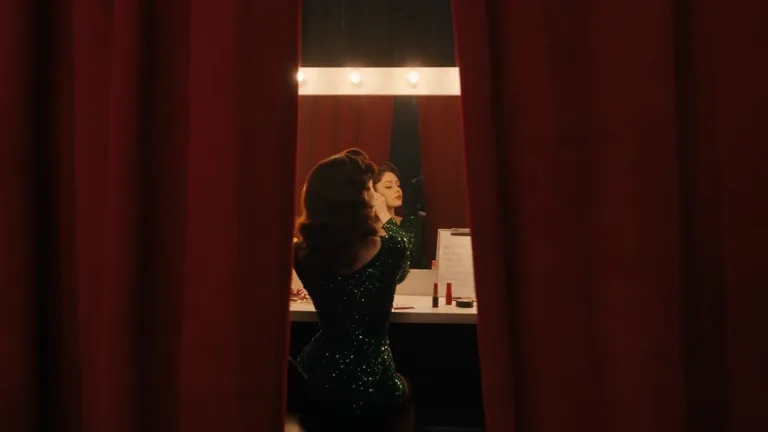
    Follow a singer from the dressing room onto the stage, then pull back to reveal the audience.

    Seedance 2.5 official showcase · text to videoByteDance Seed · source
  2. 02CHOOSE YOUR SETTINGS

    Choose a frame and a pace for your story.

    Use a wide frame to establish a setting or a vertical frame to emphasize a subject. Choose a video model and its supported aspect ratio, duration and resolution. Review the credits before you generate.

    AVAILABLE VIDEO MODELS
    • Wan 3.0
    • MiniMax H3
    • Kling 3.0
    • Seedance 2.5
    • Seedance 2.0
    • Seedance 2.0 Fast
    • Seedance 2.0 Mini
    • HappyHorse 1.1
    A wide stage frame from the official Seedance showcase16:9
    9:16
    Framing illustration · one setting, different emphasis
  3. 03PREVIEW & DOWNLOAD

    See your reference come to life.

    Already have a starting image? Switch to image-to-video, upload it and explain what should stay and what should move. Play and download the result, or refine your prompt to explore another direction.

    A painted character reaches out for a drink, hides the evidence, then gives way to a product shot.

    Make your next shot
    Seedance 2.0 official showcase · image to videoByteDance Seed · source

Videos published by ByteDance Seed. The summaries explain the scenes; see the official sources for original prompts and references. The aspect-ratio comparison illustrates framing. Results depend on your model, prompt and settings.

CREATE WITH SWRFLOW

More ways to shape your next film.

Keep your words, references, output settings and results in one creative workflow.

Start a shot with words

Describe the scene, action and camera movement. Explore product films, cinematic settings and animated shorts.

Add motion to a still image

Upload a product, landscape or illustration. Explain what to preserve and the movement you want to add.

Frame it for your next project

Choose a supported aspect ratio, duration and resolution. Plan a landscape sequence or a vertical clip.

Know the credits before you create

The estimate updates with your model and settings. Review it first, then follow the result on this page.

Review the estimate for your settings before generating. View credit plans

FAQ

AI video generation, explained.

What is the difference between text-to-video and image-to-video?

Text-to-video starts with a written description. Image-to-video also uses an uploaded reference. Describe the subject to preserve and the action, lighting or camera movement to add. The role and number of references depend on your model.

How do I write a clear video prompt?

Start with the subject and setting. Add one main action, a camera move and the lighting. For example: a mint-green perfume bottle on stone in shallow water, gentle ripples, a slow camera orbit, morning light through the glass. For short clips, focus on one action first.

Which video models can I use?

The current selection includes Wan 3.0, MiniMax H3, Kling 3.0, Seedance 2.5, Seedance 2.0, Seedance 2.0 Fast, Seedance 2.0 Mini, HappyHorse 1.1. Aspect ratios, durations, resolutions and reference limits vary. Select a model to see its available settings.

How long can my video be?

Duration depends on the selected model. Seedance 2.5 currently supports 4–30 seconds; other models have their own options. The generator only shows durations supported by your selection.

Can I use a photo of a person as a reference?

Check the selected model's reference requirements. Seedance 2.5 requires a provider approval flow for real-person photos that is not available here yet. Use object, landscape or illustrated references within the model's limits.

Do I need an account? How are credits calculated?

You can explore examples, write a prompt and save a draft before signing in. Sign in to generate with personal credits. Your estimated cost appears on the button before submission. Confirmed failed tasks return their reserved credits.

Where do I find and download my video?

After submission, the results tab shows your progress. Once ready, play and download the video here. Processing time depends on the model and queue. Check the existing task while you wait instead of submitting it again.
Your next video starts with an idea.

Set the scene, describe the action and make your first shot.

Start creating